Who is this for? #
A director in a Presto Assistant organization who needs to transfer student and parent data to another organization within the same Admin Portal.
Tip
Data transfer is only available between organizations of the same type. For example, a middle school band can transfer data to another band program, but not to a choir program.
Prerequisites #
- Your organization should be in a Presto Assistant Admin Portal with other organizations of the same type.
- You must have permission to edit users in your organization.
- You'll need the Organization Code of the target organization (for example,
prestohsband).
Transfer a Single Student #
- In the Students table, find the student you want to transfer and press the row to open their details page.
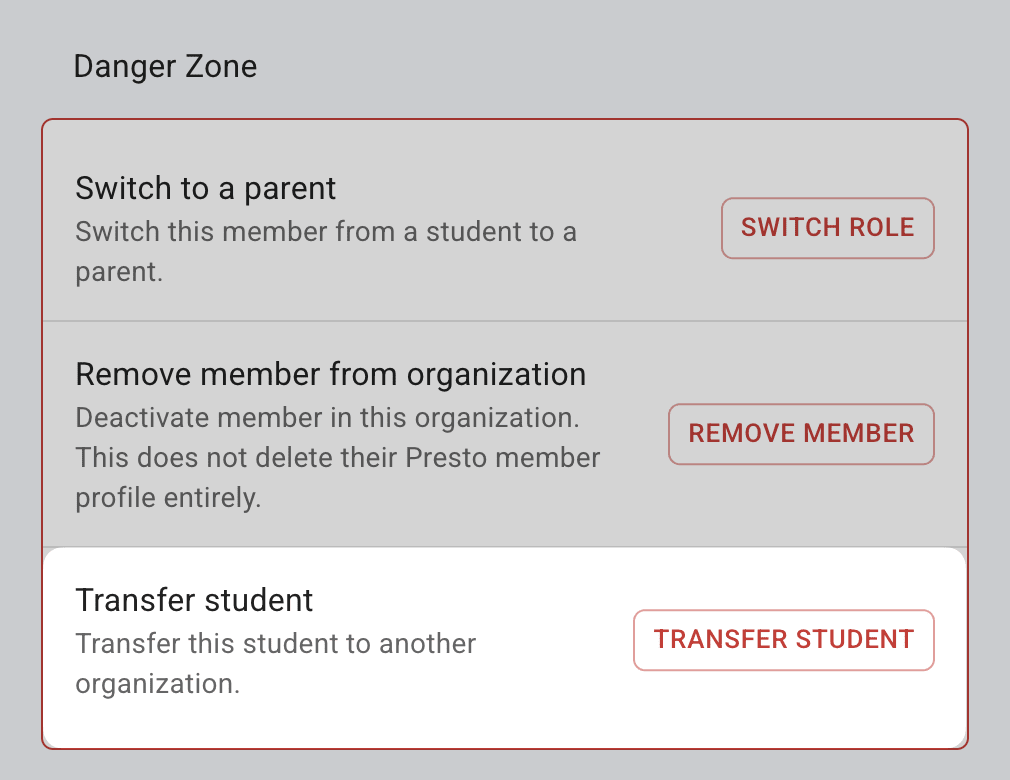
- Press "Edit" (or the pencil icon), scroll to the "Danger Zone", and press "Transfer Student".
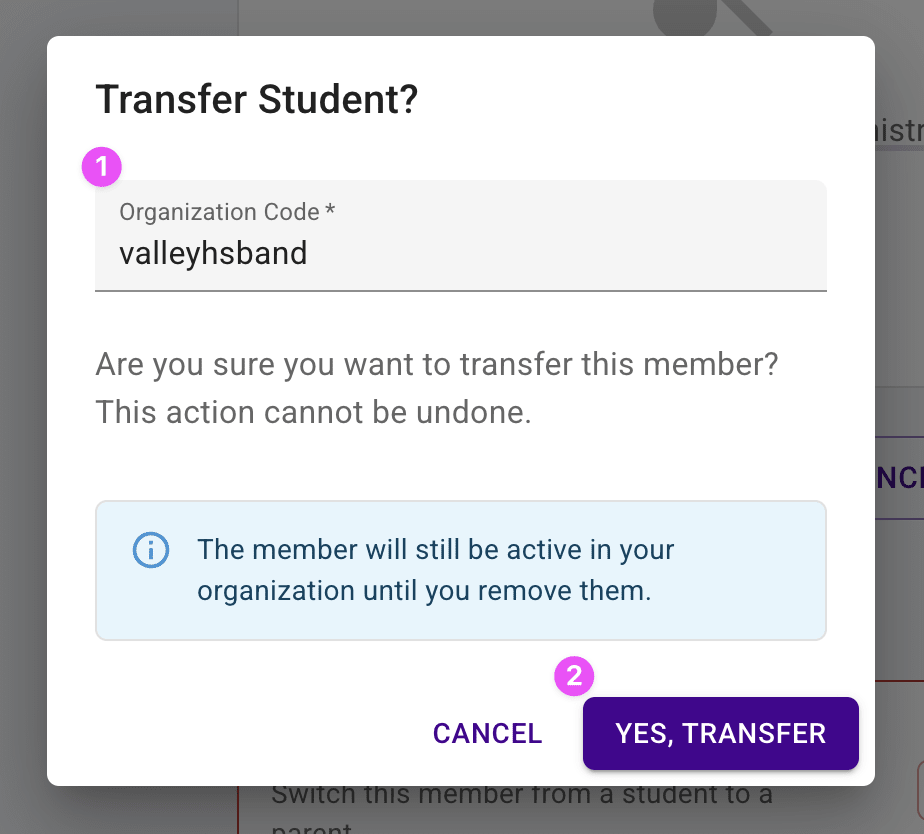
- Enter the target Organization Code and press "Yes, transfer".
Tip
Any parents associated with the student transfer with them.
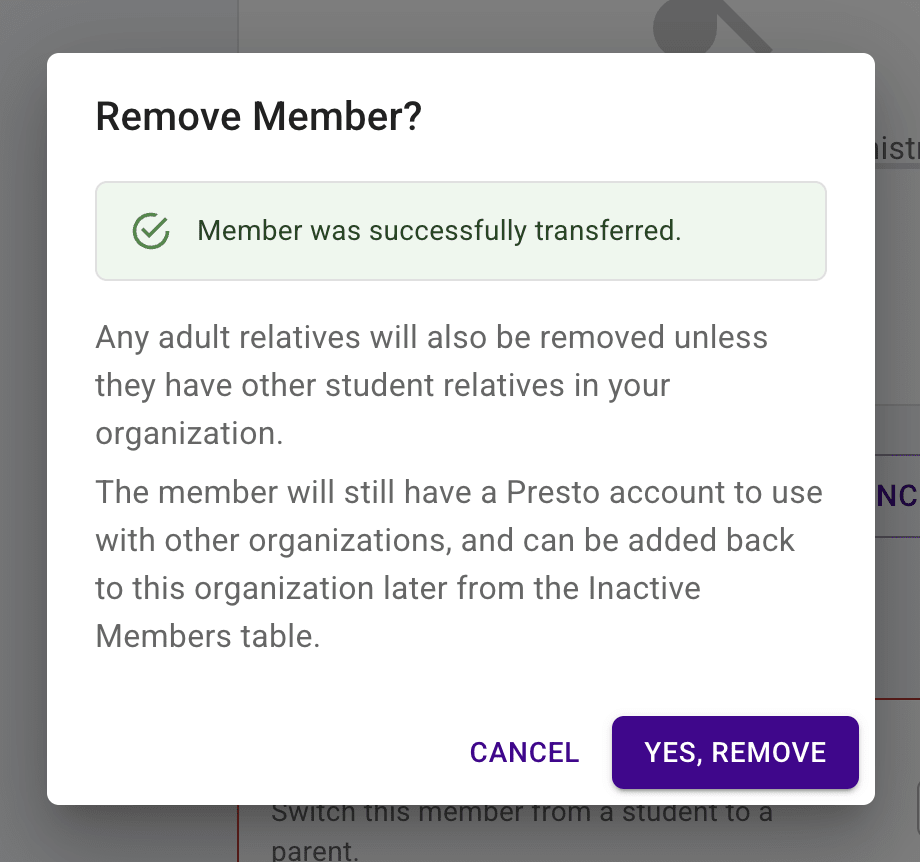
- You'll be prompted to remove the student from your organization. This shows any outstanding fees or checkouts so you can resolve them first.
Tip
Removing the student from your organization happens right away and isn't tied to whether the destination director has approved the transfer yet.
Transfer Multiple Students #
To transfer several students at once, select them in the Students table using the checkboxes, then choose Transfer selected students from the toolbar actions menu. Enter one Organization Code to apply to all of them, then press "Yes, transfer" to send them all to the same destination organization.
Acceptance by the Receiving Director #
A transfer doesn't take effect on the receiving side until a director there reviews it:
- The transferred student (and their parents) show up in the destination organization's Pending Members table, labeled with an "Approval Type" of "Transfer".
- A director there presses "Approve" or "Reject" — either per row, or in bulk for multiple pending members.
Tip
Approving a transferred student automatically approves their parent and guardian accounts too.
Directors are also notified with a card on their Dashboard when they have incoming transfers pending approval.
Next steps #
- If you need to remove a student later, see Remove a Member.
Troubleshooting #
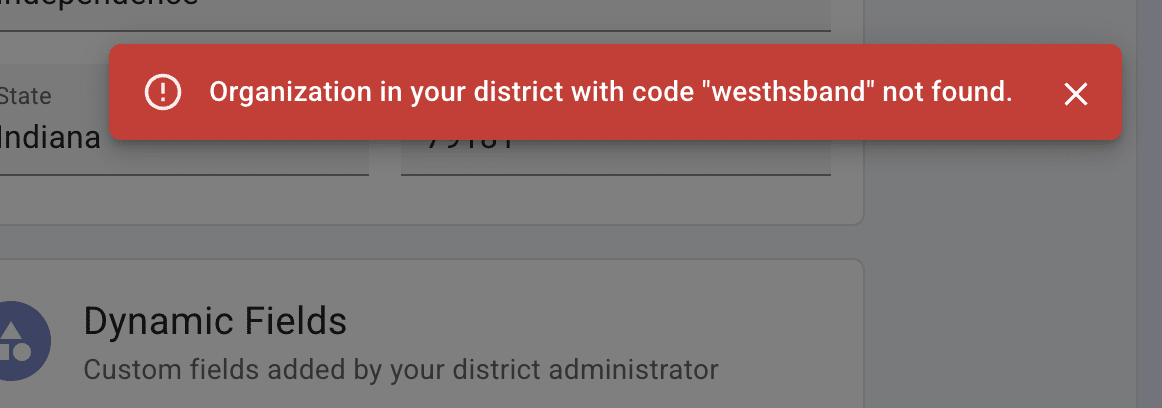
- If the transfer fails, confirm you entered the correct Organization Code for the destination organization.
- If a transferred student isn't showing up in the destination organization yet, a director there still needs to approve it from Pending Members.