Who is this for? #
Administrators and Directors who want to set up online payments through Stripe or RevTrak.
Detailed steps #
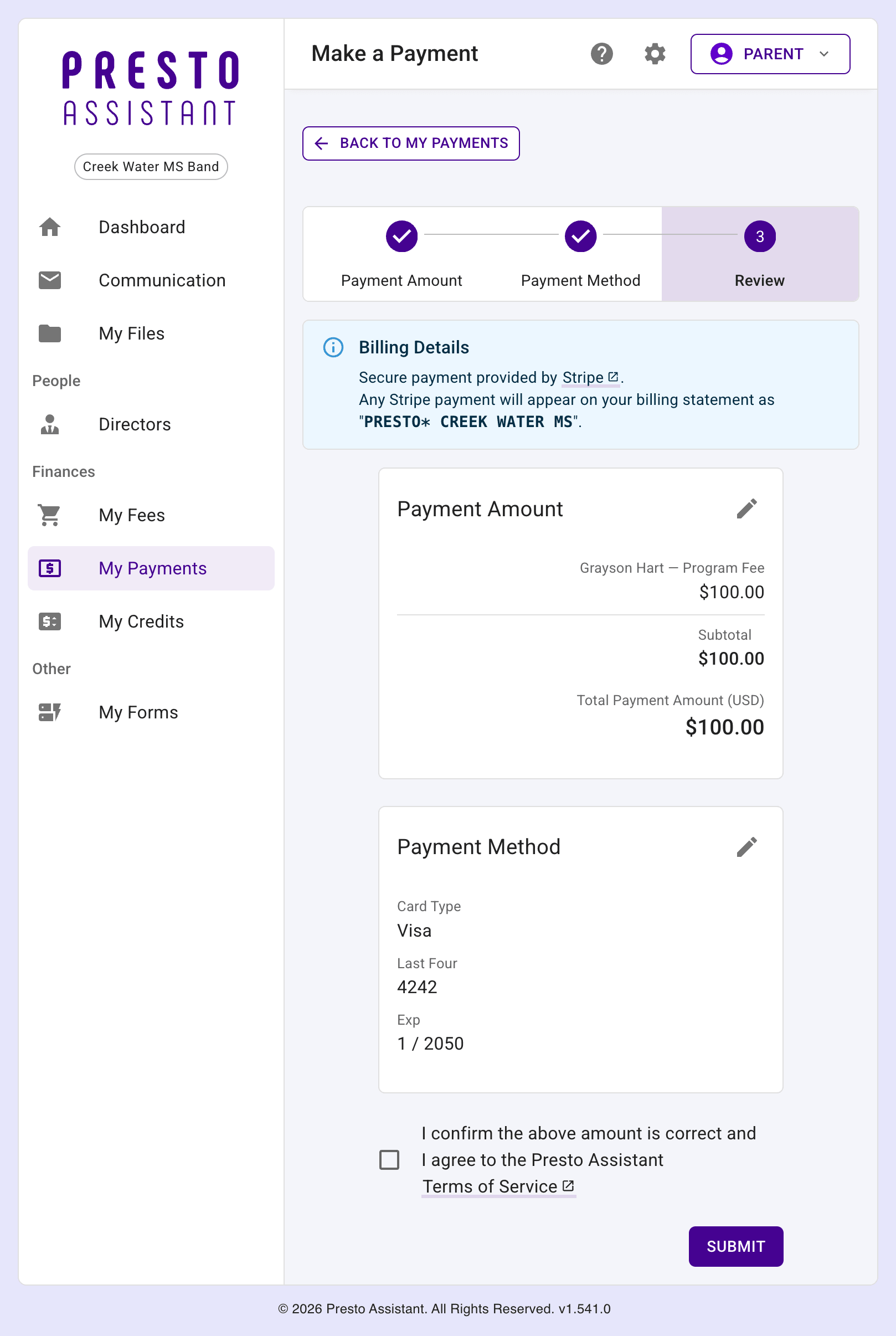
- For the Admin Portal, an Administrator or Admin Assistant should enable "Online Payments" from their Admin Portal settings page.
- An organization Director should go to the Payment Providers page in the Finances section, then press the button to add a new payment provider.
- Choose Stripe or RevTrak, and give the account a custom name (for example, "Main Account" or "Booster Club").
- Stripe: Press "Sync with Stripe" and complete the sign-in/connection flow on Stripe's site. Presto creates the payment provider account automatically once you're redirected back.
- RevTrak: Enter the PCCT code and GL Code/Account Code your school district's finance office received from RevTrak, then press Save.
Tip
If you're unsure of your PCCT or GL Code/Account Code, contact RevTrak or your district's finance office.
- Your new payment provider account now appears in the Payment Providers table, where you can rename it or delete it later.
- Your organization can repeat this step to connect additional accounts, from the same provider or a different one.
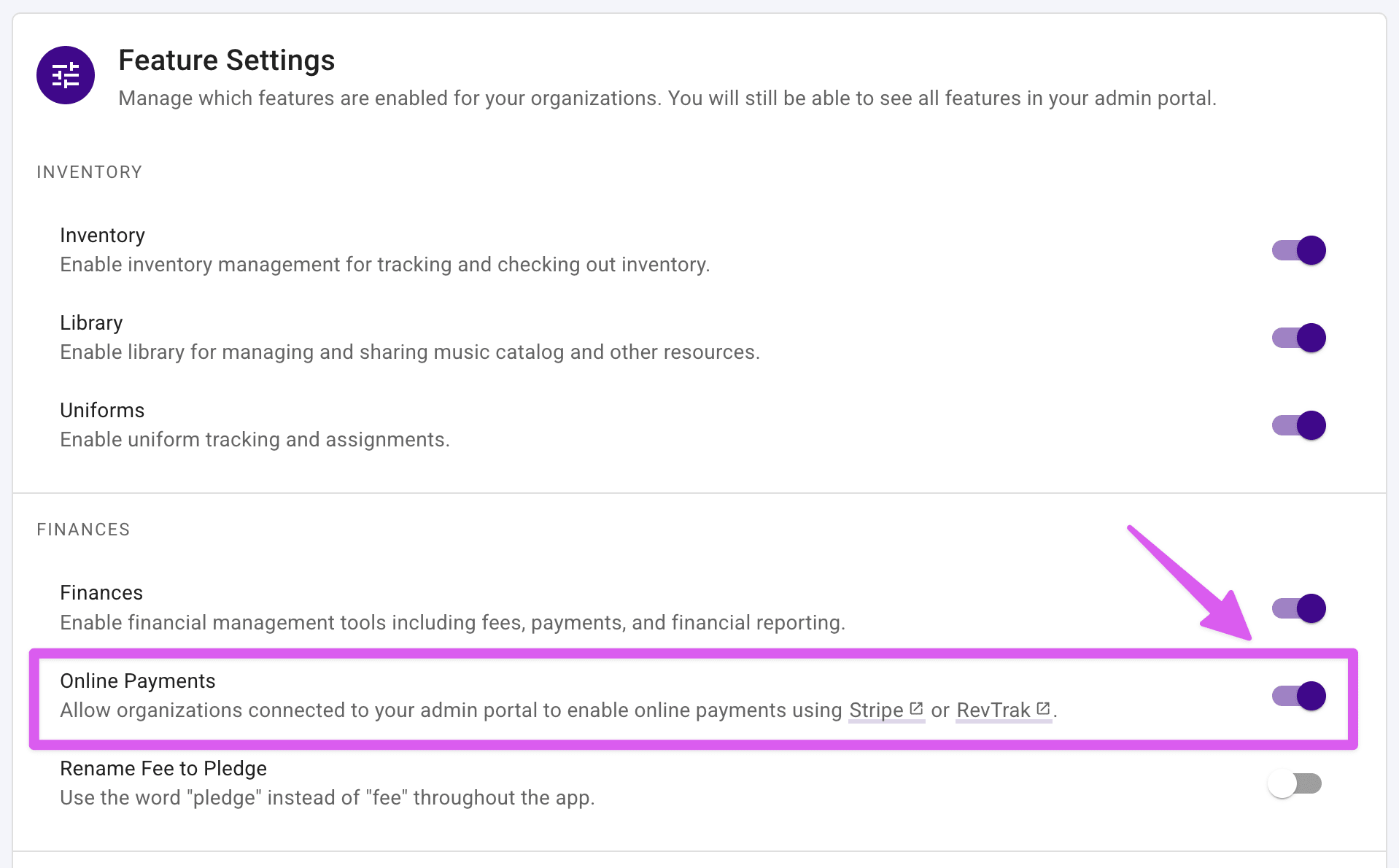
- In the Finances Overview, add a new Financial Account or view an existing one.
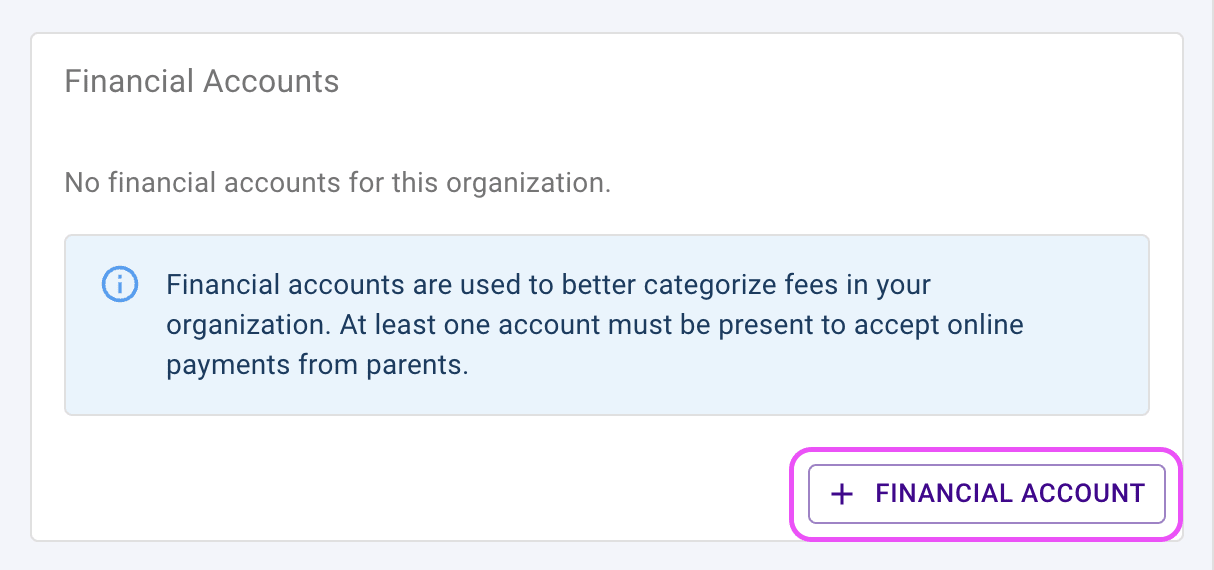
- Click the Edit button, then on the following page, use the "Payment Provider Account" field to connect the Financial Account to one of the payment provider accounts you added in step 2.
- Add or edit Financial Items to assign them to a Financial Account.
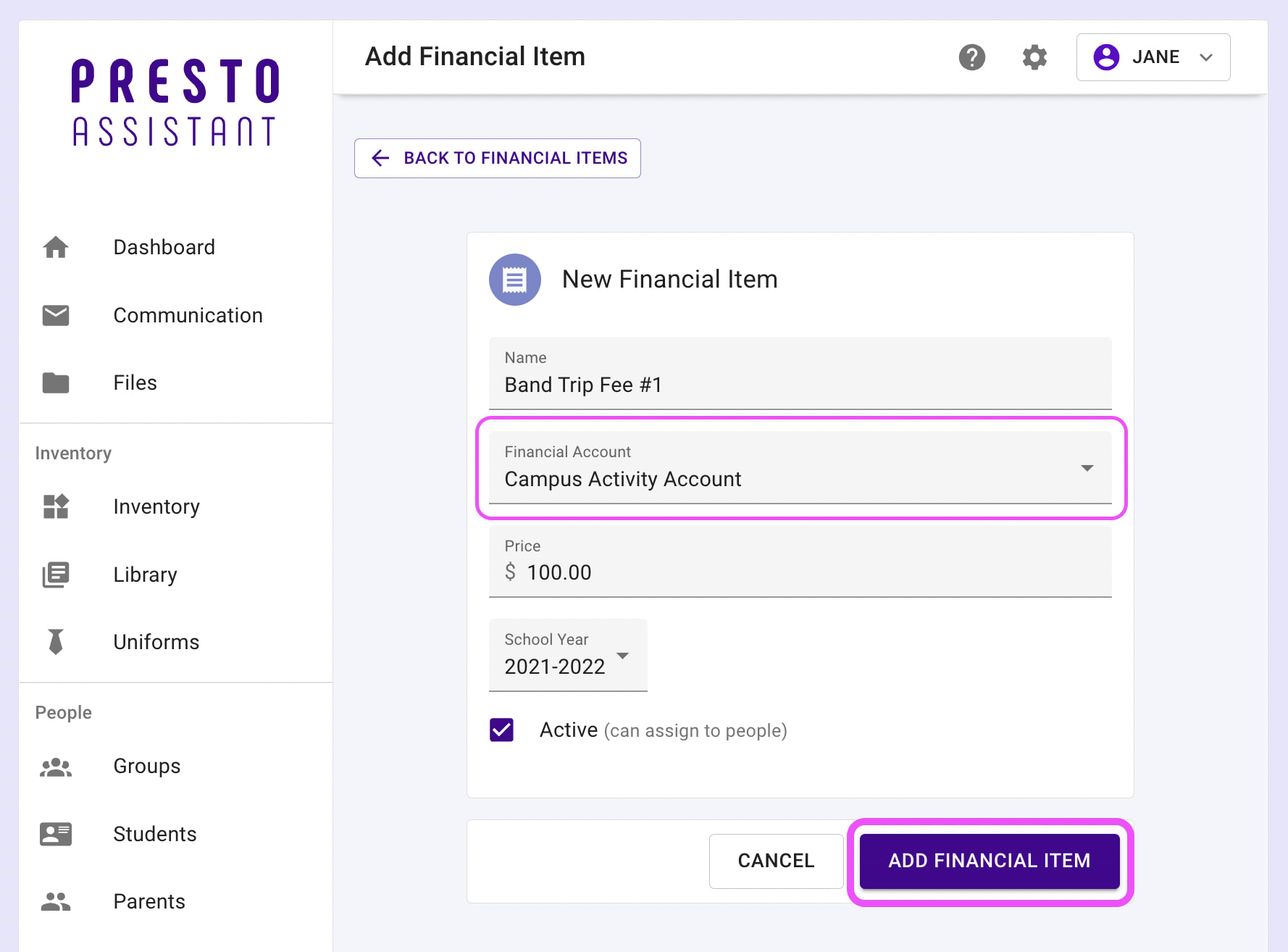
- Parents will be able to make online payments for any financial item assigned to their student family members.
Parent View When Making a Payment #
Tip
Only parents can make online payments in Presto, and only for fees tied to a Financial Account connected to a payment provider account.
- Parent starts a new payment from either "My Fees" or "My Payments" page then chooses amount to pay for their student's assigned fees.
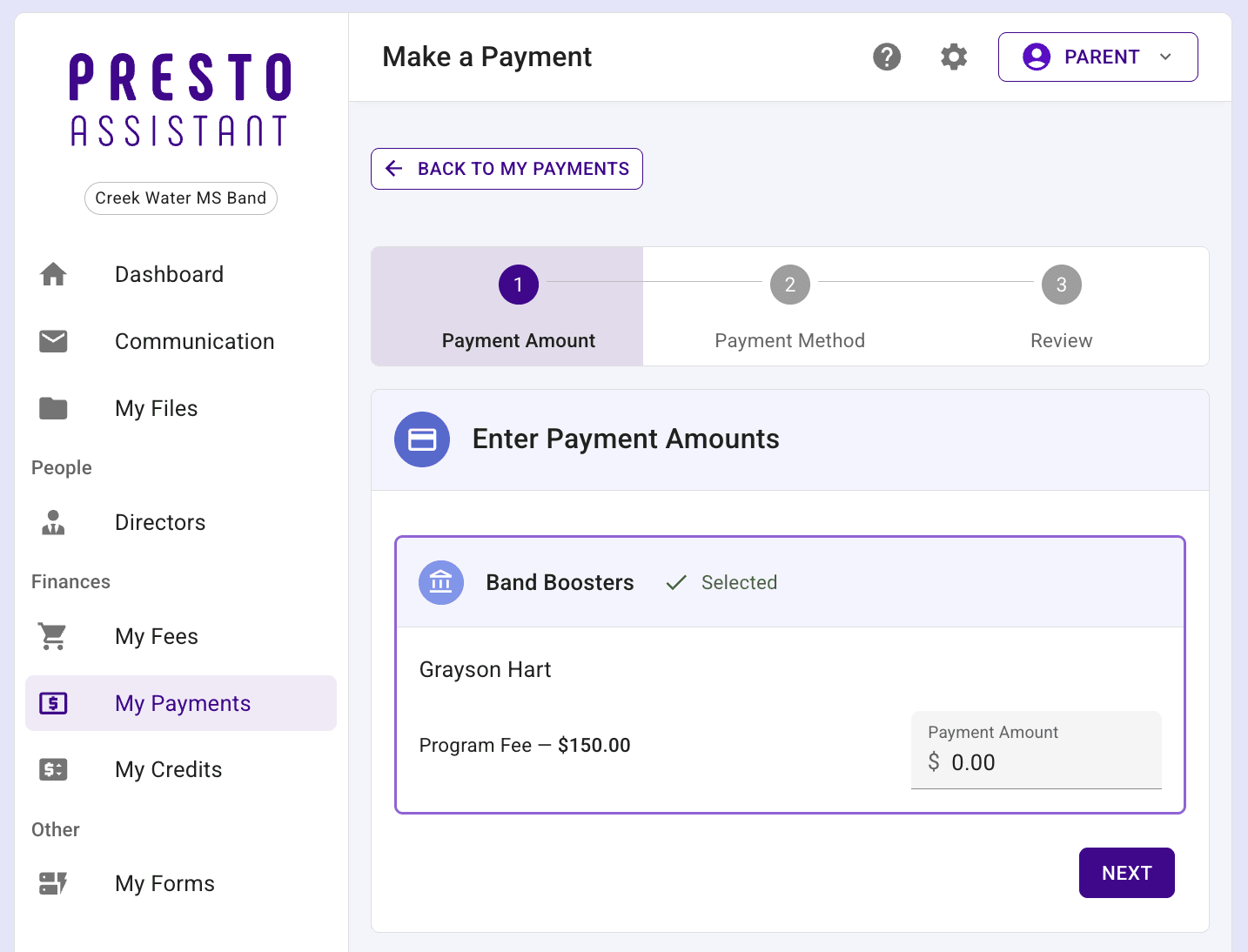
- Parent enters payment details. This information is not kept by Presto Assistant — the information goes directly to Stripe or RevTrak, depending on which provider is connected to that item's Financial Account.
Tip
This step looks different depending on the connected payment provider — the example below shows the Stripe version.
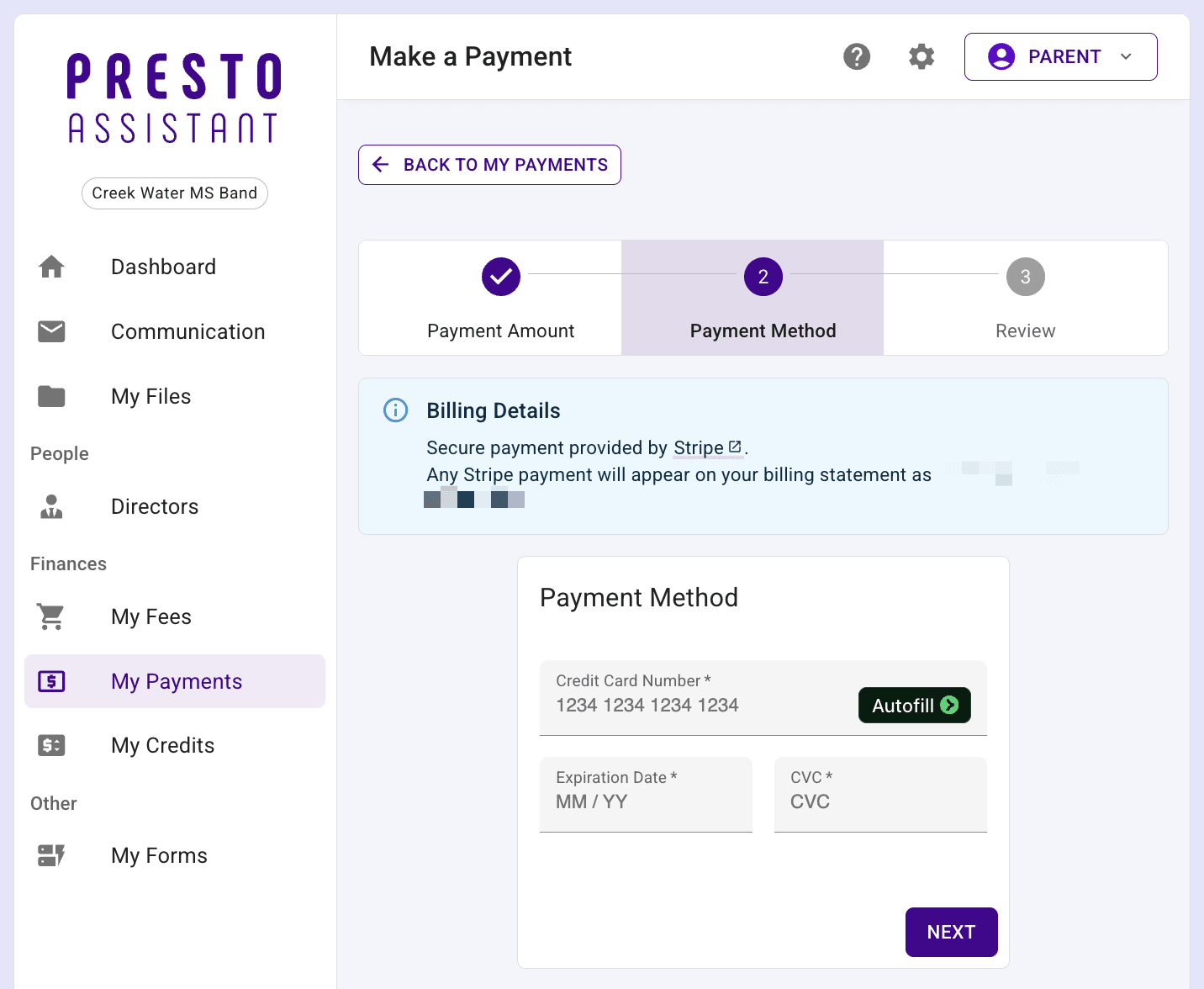
- Parent reviews details about payment before submitting. They can press the Edit icons to adjust information about the payment amount or payment method.